
Investigate Oracle Fusion results in a grid built for analysis
Short answer: Data Collage puts Oracle Fusion query results into an interactive grid. Sort, filter, find duplicates, add numeric formula columns, and format results without running the query again. Export the returned data to Excel, CSV, JSON, or HDL when you are ready to use it elsewhere.
An invoice extract usually starts another question: which items are unpaid, which amounts are largest, or which supplier has repeated invoice numbers? The results grid gives you a place to investigate those questions while the data is in front of you.
How can I filter and sort Fusion query results?
Click a column header to sort. Hold Shift while clicking another header to add a secondary sort; numbered indicators show the priority.
Use a column’s filter menu for conditions such as contains, equals, greater than, or in range. You can also right-click a cell to keep or exclude its value. Active filter pills show what is applied, so you can remove one condition or clear all filters.
These actions work on the rows already returned. They do not fetch additional records from Fusion. If your query returned a limited sample, your investigation covers that sample.
Find duplicates and focus on the records that matter
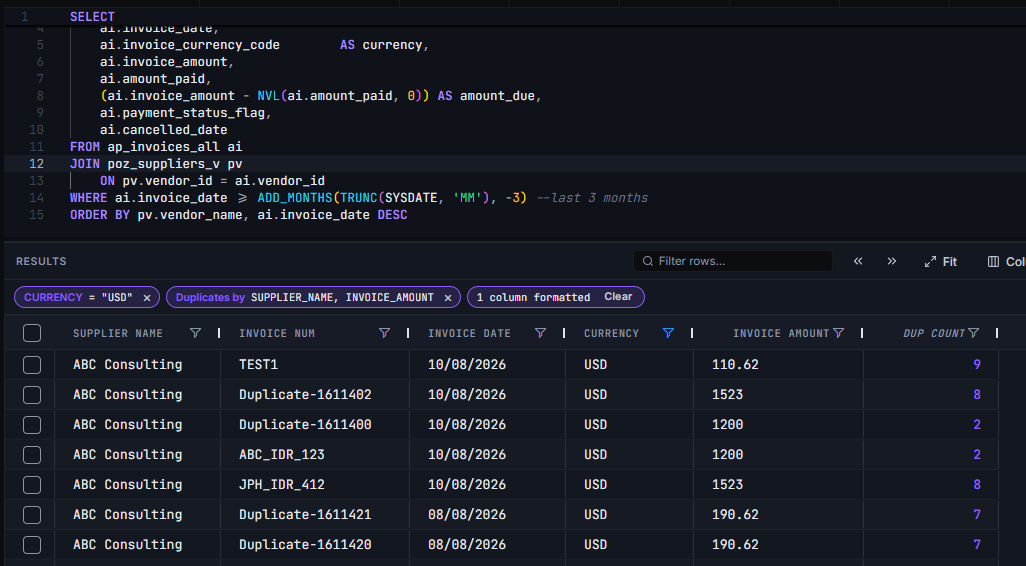
Use Duplicates to choose one or more key columns. For an AP review, combining VENDOR_ID and INVOICE_NUM finds repeated invoice numbers for the same supplier in your result set.
A repeated key is a reason to investigate, not proof of a duplicate business transaction. A join to invoice lines or holds can legitimately return several rows for one invoice.
Top / Bottom N ranks rows by a numeric column. Use it to focus on a short list, such as the 20 largest outstanding amounts within one currency. The distinct-values view shows unique values and row counts for a column, which helps you check currencies or statuses before narrowing the grid.
Add a calculated column without querying Fusion again
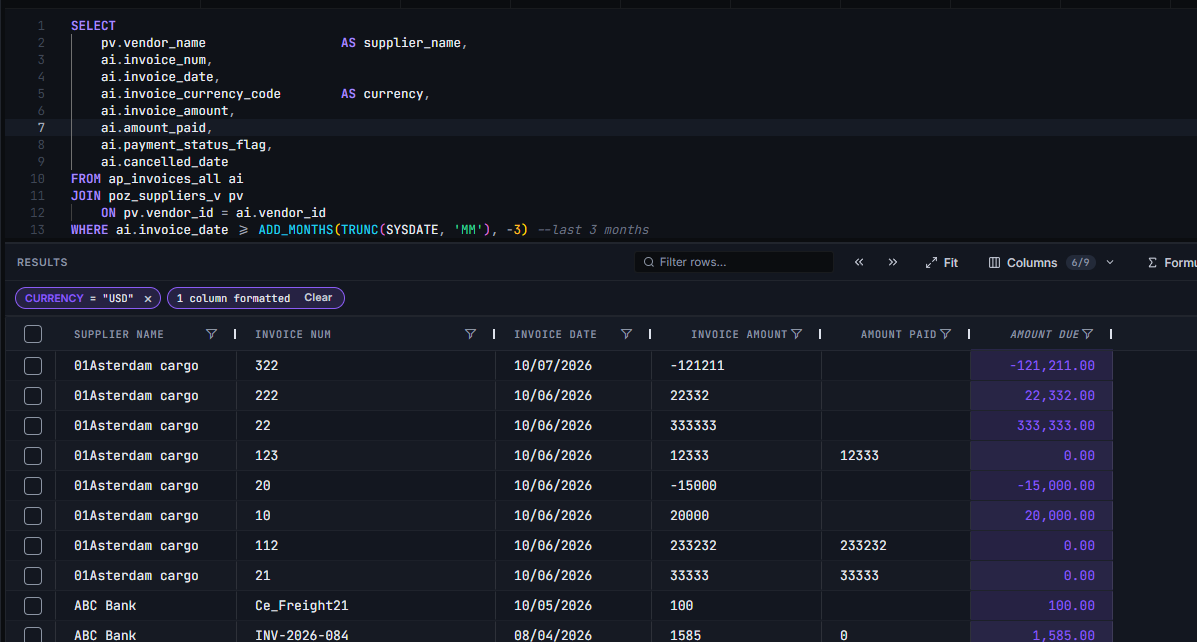
Click Σ Formula to create a numeric calculation from columns already in the result. The formula dialog previews the first five rows before you save.
For an invoice result with uppercase column headers, name the formula AMOUNT_DUE and enter:
INVOICE_AMOUNT - NVL(AMOUNT_PAID, 0)Column references must match the grid header exactly, including case. If your headers are lowercase, use lowercase names instead. NVL treats an empty paid amount as zero; without it, a NULL input produces a NULL result.
Formula columns support arithmetic and functions such as ROUND, ABS, MIN, MAX, and NVL. They can refer to other formula columns, and cycles are rejected.
Formulas are numeric and operate per row. Put text operations, date arithmetic, conditional logic, and calculations across rows into SQL.
Example: review outstanding invoices in one currency
SELECT ai.invoice_id            AS INVOICE_ID,
       ai.vendor_id             AS VENDOR_ID,
       ai.invoice_num           AS INVOICE_NUM,
       ai.invoice_currency_code AS CURRENCY_CODE,
       ai.invoice_amount        AS INVOICE_AMOUNT,
       ai.amount_paid           AS AMOUNT_PAID
FROM   ap_invoices_all ai
WHERE  ai.payment_status_flag <> 'Y'
AND    ai.cancelled_date IS NULL
AND    ai.invoice_currency_code = :p_currency
AND    ai.invoice_date >= TRUNC(SYSDATE) - 90
Run the query with your chosen currency, add the AMOUNT_DUE formula, and use Top N to focus on the largest returned amounts. Keep the currency restriction when comparing monetary values; formatting does not convert currencies.
Hide columns you do not need to read, reorder the rest, and apply number or date formats. Save the setup as an analysis if you want to repeat it at the next close.
Export Oracle Fusion results to Excel and other formats
The Export menu supports four formats:
- Excel: an XLSX workbook with typed numeric and date cells and supported display formats. Long integer identifiers are preserved, with 16-digit and longer integers stored as text.
- CSV: a tabular file for sharing and importing into other tools.
- JSON: structured rows for scripts and downstream processing.
- HDL: a pipe-delimited DAT file for HCM Data Loader workflows. Review it against the target loader’s requirements.
Use Apply column formats when you want exported display formats. Turn it off when a downstream process needs raw values. For large extracts that exceed a worksheet’s capacity, use CSV.
Do grid filters affect the exported rows?
No. Exports include the full original result set in the original row order returned by Fusion. Grid filters, Top N, duplicate checks, and grid sorting change the display. Exports do include visible columns, their current column order, and computed formula columns.
To export a subset or a specific row order, put the conditions in WHERE and the order in ORDER BY, then rerun the SQL.
Frequently asked questions
Can I export Oracle Fusion SQL results to XLSX?
Yes. Data Collage exports to Excel with typed cells and supported formats, while preserving long identifiers.
Do formula columns rerun the SQL?
No. They calculate against the existing result set on your desktop.
Does finding duplicates check all invoices in Fusion?
No. It checks the returned rows. Broaden the approved SQL query when you need a wider review.
Does currency formatting convert an amount?
No. It changes the display. Currency conversion must be part of your data or calculation.
Related features
- Open records in Fusion — move from an interesting row to its business record.
- SQL directives — keep column formats and order in your SQL.
- Saved analyses — preserve formulas and presentation for later.
Want to see how the grid fits your reconciliation workflow? Get in touch with Newarc Consulting to discuss your requirements and how to get started.