
Query Library
The Query Library is a bundled catalog of starter SQL queries against Fusion, curated by the Newarc team. It’s the fastest way to get from “I need X data” to a working query — open one, run it, tweak it, and you’re 80% of the way there.
The Library is read-only. You can’t add to it or edit existing entries — for your own saved work, use Saved Analyses (see §10).
Anatomy of a Library item
Section titled “Anatomy of a Library item”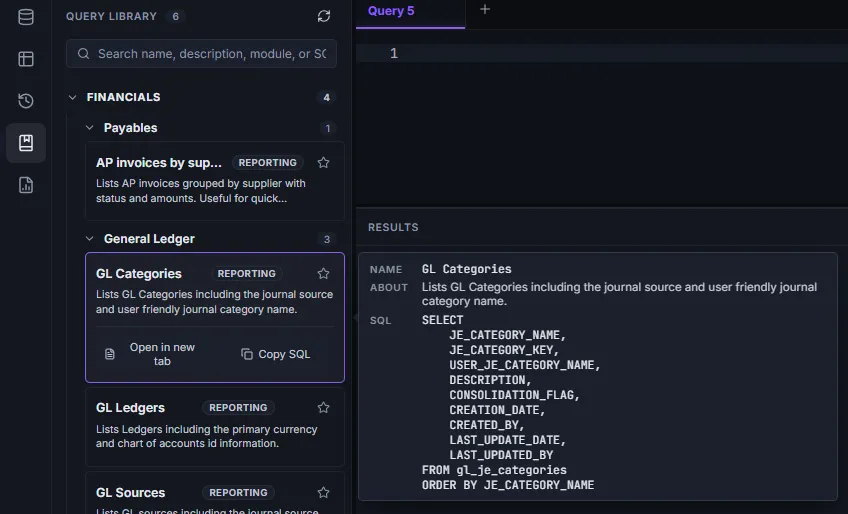
Each row in the Library shows:
- Name — what the query does (e.g. “AP invoices by supplier”).
- Module chips — the Fusion module(s) the query is relevant to: AP, AR, GL, HCM, etc.
- Description — a one- or two-line summary of what the query returns and what it’s useful for.
- “Built-in” badge — a small label confirming the query is a pre-built one from Newarc, not your own work.
- Favorite star — toggle to mark the query as a favorite (see below).
Searching and filtering
Section titled “Searching and filtering”Search
Section titled “Search”The search box at the top of the Library panel matches against multiple fields at once, so you can find a query by whatever you remember about it:
- Name — the obvious one.
- Description — for when you remember “the one about aging” but not the exact name.
- Module name
- The SQL text itself — useful when you remember a table name (
ap_invoices_all) but not which Library query uses it.
Module filter
Section titled “Module filter”Below the search box is a dropdown that filters the list to a single Fusion module — AP, AR, GL, HCM, and so on. Row counts per module appear in parentheses so you can see at a glance which areas have the most starter queries.
The search and module filter combine — filter to AP and search for “aging” to see only AP queries related to aging.
Using a query
Section titled “Using a query”Click any row to expand it. Two actions appear:
- Open in new tab — loads the SQL into a fresh editor tab, ready to run.
- Copy SQL — puts just the SQL text on the clipboard, for pasting into another tab, an email, or a chat message.
Hover preview
Section titled “Hover preview”If you don’t want to expand the row, just hover over it. A side tooltip appears showing the Name, a longer About, and a preview of the SQL — useful when you’re scanning the Library for the right starting point and don’t want to expand each entry.
Favorites
Section titled “Favorites”Click the star icon on any Library item to mark it as a favorite. Favorited entries:
- Sort to the top of the list, regardless of module filter or search.
- Stay favorited across app restarts (the state is stored on your local machine).
Click the star again to unfavorite.
Growing catalog
Section titled “Growing catalog”The Library is curated and grows with each release. Expect new starter queries (and refinements to existing ones) in upcoming versions of Data Collage. If there’s a query pattern you find yourself reaching for repeatedly, send it our way at datacollage@newarcinc.com — your suggestions help us decide what to add next.