
The Result Grid
Every query in Data Collage feeds its results into a fast, spreadsheet-style grid below the editor. The grid is comfortable with tens of thousands of rows and offers a long list of interactions for slicing, sorting, formatting, and copying the data without going back to the editor.
What the grid shows
Section titled “What the grid shows”Loading and empty states
Section titled “Loading and empty states”- While a query is running, the grid shows a “Running…” indicator with a spinner. The previous result set (if any) stays in place until the new one arrives.
- When zero rows come back, the grid shows column headers with an empty body and a “No rows” hint. The row count in the toolbar reads
0.
Result metadata
Section titled “Result metadata”Two places show what just happened:
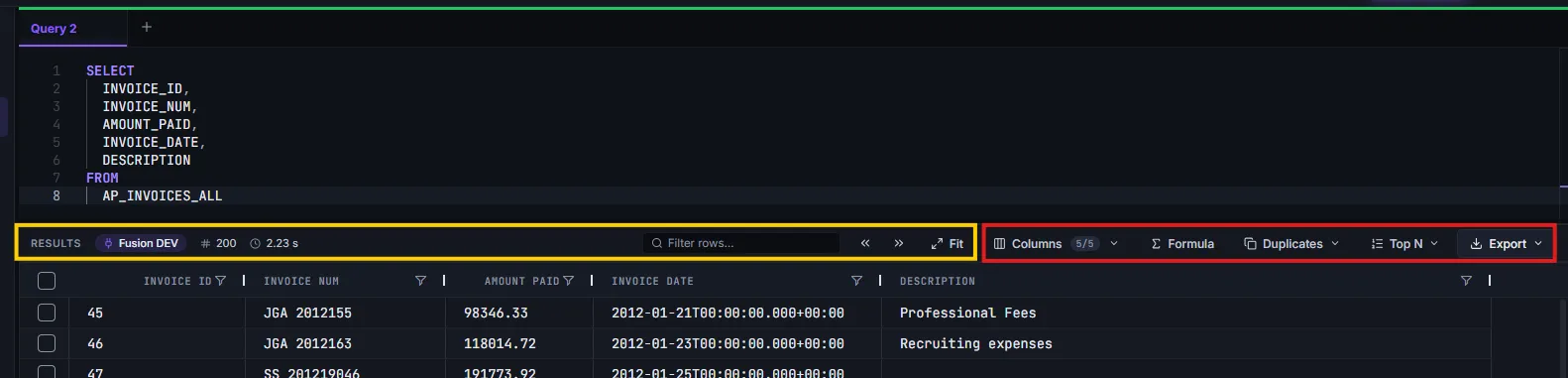
- The Results toolbar directly above the grid shows the row count and the elapsed time (how long Fusion took to return the data).
- The Status Bar at the bottom of the window adds the data size of the returned payload (KB or MB), which is useful for spotting unexpectedly large extracts.
Sorting
Section titled “Sorting”- Single-column sort — click a column header to toggle ascending → descending → no sort.
- Multi-column sort — hold Shift while clicking a second (or third) header to add a secondary sort level. A small number on the header shows the priority of each sort level (1 = primary, 2 = secondary, and so on). Shift-clicking a sorted column again cycles its direction or removes it from the sort.
Filtering
Section titled “Filtering”You have two ways to filter the grid:
Per-column filter menu
Section titled “Per-column filter menu”Hover a column header to see its filter icon, then click it to open the filter menu. From there you can choose conditions like equals, contains, starts with, blank, not blank, and so on. Filters are typed for the column — text columns get text operators, numeric columns get numeric operators (greater than, less than, in range).
Quick filter from a cell
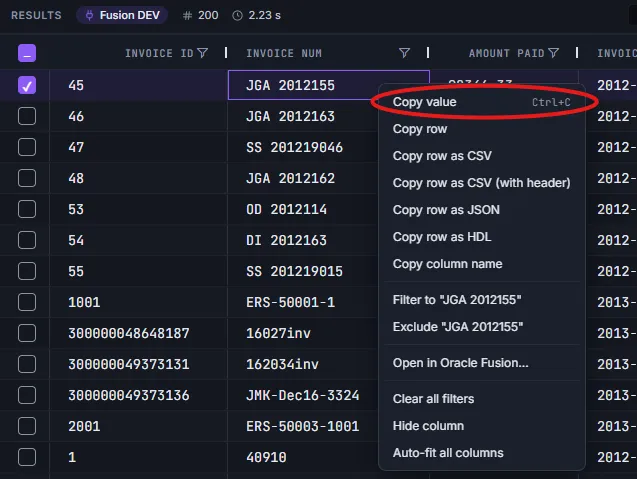
Section titled “Quick filter from a cell”Right-click any cell to filter the grid against that cell’s value:
- Filter to “value” — keep only rows where the column equals that value
- Exclude “value” — hide rows where the column equals that value
Active filter pills
Section titled “Active filter pills”Every column filter you apply appears as a pill above the grid, showing the column and its condition. Click a pill’s × to remove just that filter, or Clear all to remove them together. When many columns are filtered, the strip shows the first few and a +N more count.
Clear all filters
Section titled “Clear all filters”Right-click anywhere in the grid → Clear all filters removes every applied filter at once, the same as Clear all on the pill strip. (Sorts and Top N / Duplicates state are preserved.)
Find duplicates
Section titled “Find duplicates”Use the Duplicates button on the toolbar to surface rows that share key values.
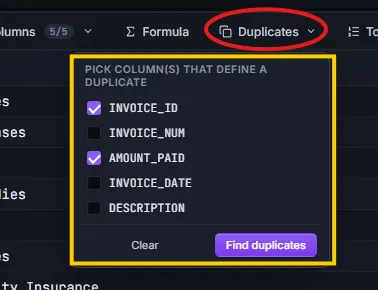
- Click Duplicates on the toolbar.
- In the dropdown, tick one or more columns that together define a duplicate. (For example, ticking just
invoice_numfinds invoices with the same number; tickingvendor_idandinvoice_numtogether finds duplicates per supplier.) - Click Find duplicates.
The grid filters in place to show only rows whose key values appear more than once across the result set. Click Duplicates again and clear to return to the full set.
Top / Bottom N
Section titled “Top / Bottom N”Use the Top N button to keep only the highest or lowest N rows ranked by a numeric column.
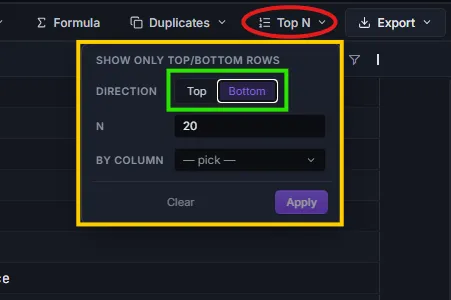
- Click Top N on the toolbar.
- Pick Top or Bottom.
- Enter N (e.g. 10 for the top 10).
- Pick the numeric column to rank by (e.g.
amount_due). - Click Apply.
The grid filters in place to those rows. Click Clear in the same dropdown to remove.
Show, hide, and reorder columns
Section titled “Show, hide, and reorder columns”Hide a single column
Section titled “Hide a single column”Right-click any column header → Hide column. Quick when you want one specific column out of the way.
Manage all columns from the Columns picker
Section titled “Manage all columns from the Columns picker”The Columns button on the toolbar opens a picker for bulk show/hide work.
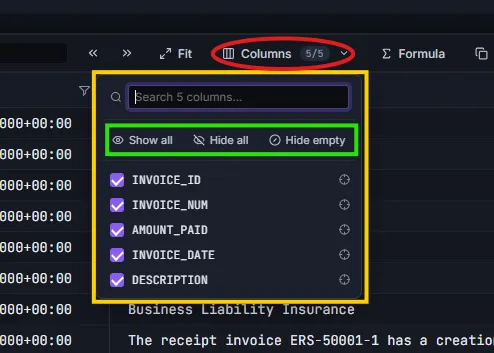
From the picker you can:
- Search for a column by name (handy on wide result sets —
Ctrl+F-style) - Tick or untick per-column checkboxes to show or hide
- Click Show all / Hide all to bulk-toggle
- Click the crosshair icon next to any column to reveal it in the grid — scrolls to that column and unhides it first if it was hidden
- Toggle the fx filter to narrow the picker to only your formula columns
Reorder columns
Section titled “Reorder columns”Drag any column header left or right to change the order. The new order persists in Saved Analyses.
Column formatting
Section titled “Column formatting”Right-click a column header to apply a per-column format:
- Format as number… — choose from Plain, Thousands separator, Decimals (0/2/4), Percent, Currency (USD), or Scientific.
- Format as date… — choose from the available date formats.
The formatting only changes how values are displayed in the grid and in exports (when Apply column formats is enabled in the Export menu) — the underlying values are untouched. Default formats applied to every new result set are configurable in §14 — Settings.
Distinct values
Section titled “Distinct values”Right-click a column header → Show distinct values… opens a side panel listing every unique value in that column with a count of how many rows have it. Useful for quickly checking the cardinality of a status code, currency, region, or any other dimension before you start filtering.
Copying values
Section titled “Copying values”The grid is built for the “see something, copy it, paste it elsewhere” workflow.
Copy row
Section titled “Copy row”Right-click any cell to copy that whole row in one of four formats:
| Option | What ends up on the clipboard |
|---|---|
| Copy row | Tab-separated values, no header — pastes into Excel as separate cells. |
| Copy row as CSV | Comma-separated values, no header. |
| Copy row as CSV (with header) | Comma-separated values, header row included. |
| Copy row as JSON | A single JSON object with column names as keys. |
Multi-row copy is not supported in V1. Copy is one row at a time; for larger extracts use the Export menu (see §9).
Copy column name
Section titled “Copy column name”Right-click a column header or any cell in that column → Copy column name puts just the column’s name on the clipboard. Handy when you’re building joins, asking a colleague about a specific field, or writing a follow-up query.
Single-column only in V1 — copying multiple column names at once isn’t supported yet.
Auto-fit
Section titled “Auto-fit”Column widths default to a sensible size based on content, but you can re-fit at any time:
- Fit button on the toolbar — widens every column to fit its content.
- Right-click a column header → Auto-fit this column — fits one column.
- Right-click a column header → Auto-fit all columns — same as the toolbar Fit button.